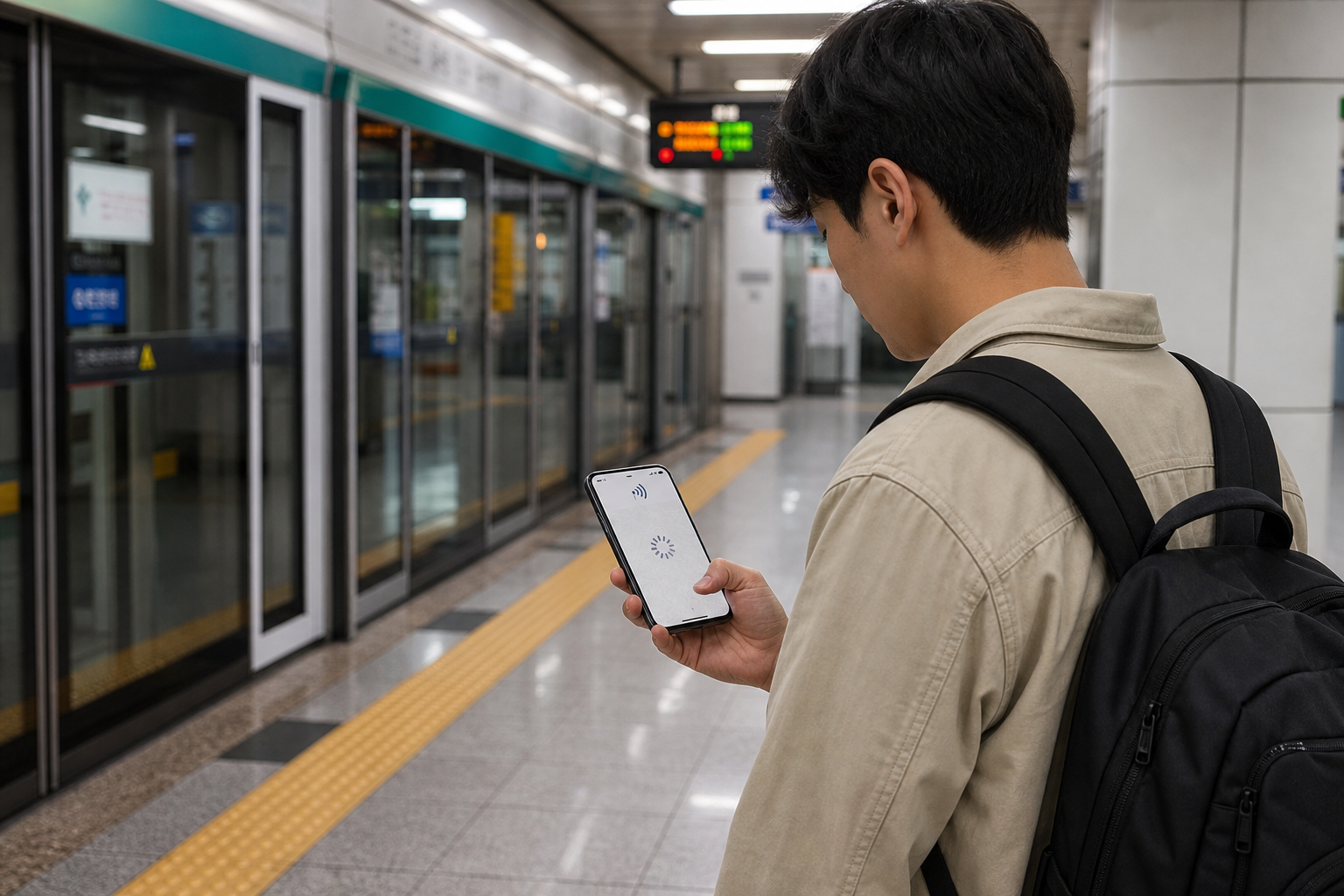
Start with a check that takes no more than 30 seconds: turn off Wi-Fi, open a browser and load a page you have never opened before, then search for a nearby station in Maps. If both fail but the status bar still shows 4G, 5G, or LTE, this guide applies. If you do not even see a carrier name or signal bars, the issue is closer to “not registered on the network,” and you should return to the troubleshooting entry in the complete Korea eSIM guide and branch from there. The two screens can look similar, but the order of fixes is different.
For now, do not delete the eSIM, reset the entire phone, or scan the QR code again. Travel eSIMs often have one-time download limits; once deleted, they may not be reinstallable on your own. What you need to find is which layer is broken: the phone is pointing data to the wrong SIM, the travel SIM’s data roaming is off, the plan has not activated yet, the network has not re-registered, or the provider-required APN has not been applied. Change one thing at a time and test after each step so you can see what actually worked.
If you have not bought yet, check the activation, roaming, and APN terms on the named Korea product page first; if you already ordered, follow the order confirmation.
The first screen rules out half the problem: which SIM is actually handling mobile data?
The most common mistake on dual-SIM phones is that the travel eSIM is active and even shows a Korean carrier name, but mobile data is still assigned to the Taiwan number. If roaming is off on the original line, you end up with signal but no data. If roaming is on, you may get online but incur unexpected charges. That is why the division of roles between your Taiwan number and Korea eSIM has to be set before departure, not guessed from the SIM card color after you land.
On iPhone, you can confirm which number is currently used for mobile data in Settings under Cellular or Mobile Data. When multiple SIMs are present, select the travel eSIM. Android menu names vary by brand, but the option is usually under Network & Internet, Connections, or a SIM management tool. Samsung users can follow the data source settings in the SIM Card Manager; for other Android phones, use the function name as your guide rather than trying to find an identical menu label.
If the card name still says “Primary,” “Secondary,” or a string of carrier codes, rename it to “Taiwan number” and “Korea data.” This is not cosmetic; it helps prevent turning on roaming for the wrong line in the next step. After that, turn off Wi-Fi, confirm mobile data is set to the Korea SIM, and test the browser again. If it works immediately, the issue is resolved and you do not need to keep adjusting APN.
Travel SIM data roaming may need to be on, but the original line should not be
Many travel eSIMs use partner carrier networks, so product pages may require data roaming to be enabled on the travel eSIM. Apple also manages dual-SIM roaming settings separately for each number, and Google Pixel provides a roaming switch in SIM settings. The key is not “turn roaming off whenever you go abroad” or “always turn roaming on for eSIM,” but which card is responsible for what.
Tap into the travel eSIM and enable data roaming according to the order instructions; keep data roaming off on your Taiwan line. If you need to receive bank SMS or calls from Taiwan, you can keep the original line active, but do not let the system automatically switch mobile data. On iPhone, “Allow Cellular Data Switching” can blur responsibility in a travel setup. Unless you fully understand the charges, it is easier to troubleshoot if the Korea SIM is fixed as the data line.
After turning it on, wait one to two minutes. Some phones need to re-register on the network before a data connection is established. You can also toggle Airplane Mode off and on for about 10 seconds, then return to normal mode. This is faster than restarting the phone and will not erase any settings. If the signal returns but the browser still will not load, move on to the next layer.
| What you see | First thing to check | Do not do yet |
|---|---|---|
| Korean carrier name + 4G/5G, but no apps can access the internet | Mobile data source, travel SIM roaming | Delete the eSIM |
| Browser works, only one app fails | That app’s permissions, server, or VPN | Reset all network settings |
| Signal is present but speeds suddenly become very slow | Plan throttling, usage, location | Keep switching APN repeatedly |
| No carrier name or signal bars at all | eSIM activation, network registration, coverage | Work through the article and change everything in sequence |
If your current plan has expired or run out of data, check the product page status first; do not use a phone reset to hide a plan issue.
Plan status is worth checking before phone settings
If the eSIM worked yesterday but suddenly does not work today, the chance that a setting changed by itself is usually lower than the chance that the plan expired, data was used up, speeds were throttled after passing a fair-use threshold, or the provider is having a temporary issue. First check the app or order page for validity, remaining data, and activation status. Short-term plans often end early because people count hotel nights as valid days. If you are unsure, revisit how eSIM days are calculated.
“Unlimited data” also does not mean the same speed all the time. Some plans slow down after a certain usage threshold, and once they drop to the point where maps barely work and images or video hardly load, it is easy to mistake that for a total outage. Try a plain text website or send a short message first, then check whether the provider lists a fair use policy. For unlimited plans, continue with the speed-limit trade-off on Korea unlimited eSIMs.
If only Instagram, YouTube, or a company VPN fails while other websites work, the issue may not be the eSIM. Turn off VPN, Private DNS, or ad-blocking tools first, then check whether that app is allowed to use mobile data. Separating “the whole phone has no internet” from “one service will not connect” helps you avoid unnecessary changes to carrier settings.
APN is one of the last steps, not the first thing to fill in when there is no internet
APN is the network path your phone uses to reach mobile data service. Apple explicitly warns that entering the wrong APN may break mobile data connectivity, and that APN can only be viewed or edited when the carrier allows it. So unless your order confirmation or provider support gives you a specific APN value, do not copy settings from another article, a forum comment, or a travel companion.
If the product explicitly requires an APN, match the name, username, and password exactly; leave blank fields blank and do not fill them with common strings on your own. On iPhone, if you cannot see “Mobile Data Network” or cannot edit it, the carrier may have restricted the setting. In that case, send the screen and order number to provider support. On Android, if you can add an APN, make sure the new one is selected afterward rather than merely created while the old one remains active.
After finishing APN settings, toggle Airplane Mode off and on once more and test again. If it still fails, capture screenshots of the following: the eSIM name, the selected mobile data line, the roaming switch, the carrier name shown, the error time, and your location. Do not expose the full QR code in the screenshots. These details help support diagnose the issue far better than “I can’t get online.”
Before resetting network settings, know what you will lose
Resetting network settings may clear saved Wi-Fi, VPN, and other connection data, but it does not guarantee a fix for plan expiry or APN errors. It should come after you have confirmed the data source, roaming, plan status, APN, and provider network. If you are traveling and only have one usable Wi-Fi connection left, make sure you know the password and save your order and support details before resetting.
Restarting the phone is a lower-risk option and can be tried earlier, but record your current settings first so you do not end up relying on memory after the reboot. If a companion using the same provider and staying in the same place loses connection at the same time, it is more likely a provider or partner network issue. At that point, continuing to change your own phone only makes recovery harder later.
The situation where you really need to switch plans is when you have already confirmed the phone settings are correct, the current plan cannot be restored, and the next part of your trip will have no Wi-Fi. If the issue is only temporary at a hotel, you can contact support over Wi-Fi first. If you need to catch a train, move around alone, or go to a concert, backup connectivity is more valuable. Before buying again, re-check device compatibility, days, and data allowance so the second card does not repeat the first card’s mistake.
If the current plan definitely cannot be restored and the next leg of the trip cannot go without internet, then check a new named Korea plan.
Stop troubleshooting at the right layer
When you have signal but no internet, what matters most is not a specific brand menu but the order of responsibility: which SIM is handling data, whether the travel SIM’s roaming is on according to the terms, whether the plan is still valid, whether the network has re-registered, and whether the APN was clearly provided by the carrier. Move to the next layer only after the current one checks out. That way, even if you switch to a different phone or a different Korea plan, you can still use the same logic.
Once the connection is restored, there is no need to delete the card or reset settings just to keep things “clean.” Save screenshots of the working card name, roaming status, and APN, and check the same details after the next restart. The end point of troubleshooting is getting your trip back on track, not trying every menu on the phone.
Further reading